Need to write a hard message?
Help me say no to hosting Thanksgiving, kindly.
“Thank you for thinking of us! We can't host Thanksgiving this year. If you're hosting, we'd love to bring dessert.”
Help me say no to hosting Thanksgiving, kindly.
“Thank you for thinking of us! We can't host Thanksgiving this year. If you're hosting, we'd love to bring dessert.”
 Give me a recipe I can make with these.
One-pan chicken, broccoli and rice: 1. Brown the chicken. 2. Add rice and 2 cups of water. 3. Broccoli on top, cover for 15 minutes.
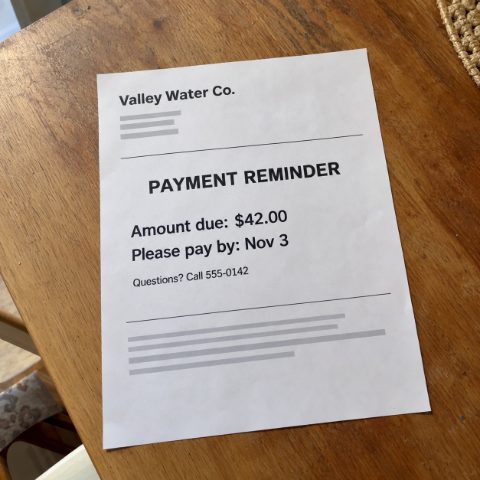 What does this want me to do?
It's a water bill reminder. Pay $42 by Nov 3. Questions? Call 555-0142.
AI can click and type in your apps for you while you watch.
Copy every address from my party emails into a spreadsheet.
Make a party event on my calendar for Saturday at 3 with all the details. Don't send invites yet.
Fill in the soccer sign-up form for both kids. Don't submit it yet.
You can stop it any time.
Only from chatgpt.com/download. Install it and sign in.
In the app, pick ChatGPT and switch to Work (or pick Codex).
Plugins → Computer Use → Install plugin (or Enable). Switch both toggles on, then Try now.
System Settings → Privacy & Security: allow Screen Recording and Accessibility. Windows needs nothing extra, but ChatGPT takes over the screen while it works.
In Work mode, just say what to do. Try this first:
Open Notepad and type: hello